Color Flip guide
Color Flip Guide: Tap-to-Step and Turn-Based Modes
Learn the tap-to-step visual mode, color rotation options, and how to use the accessible untimed turn-based mode.
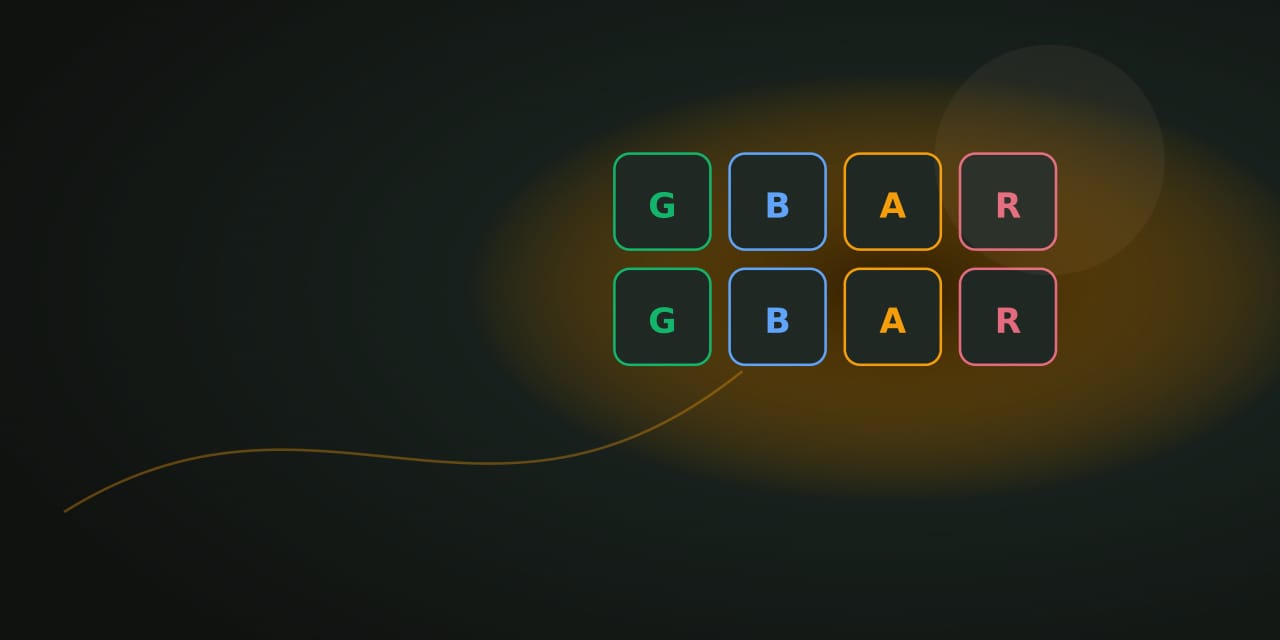
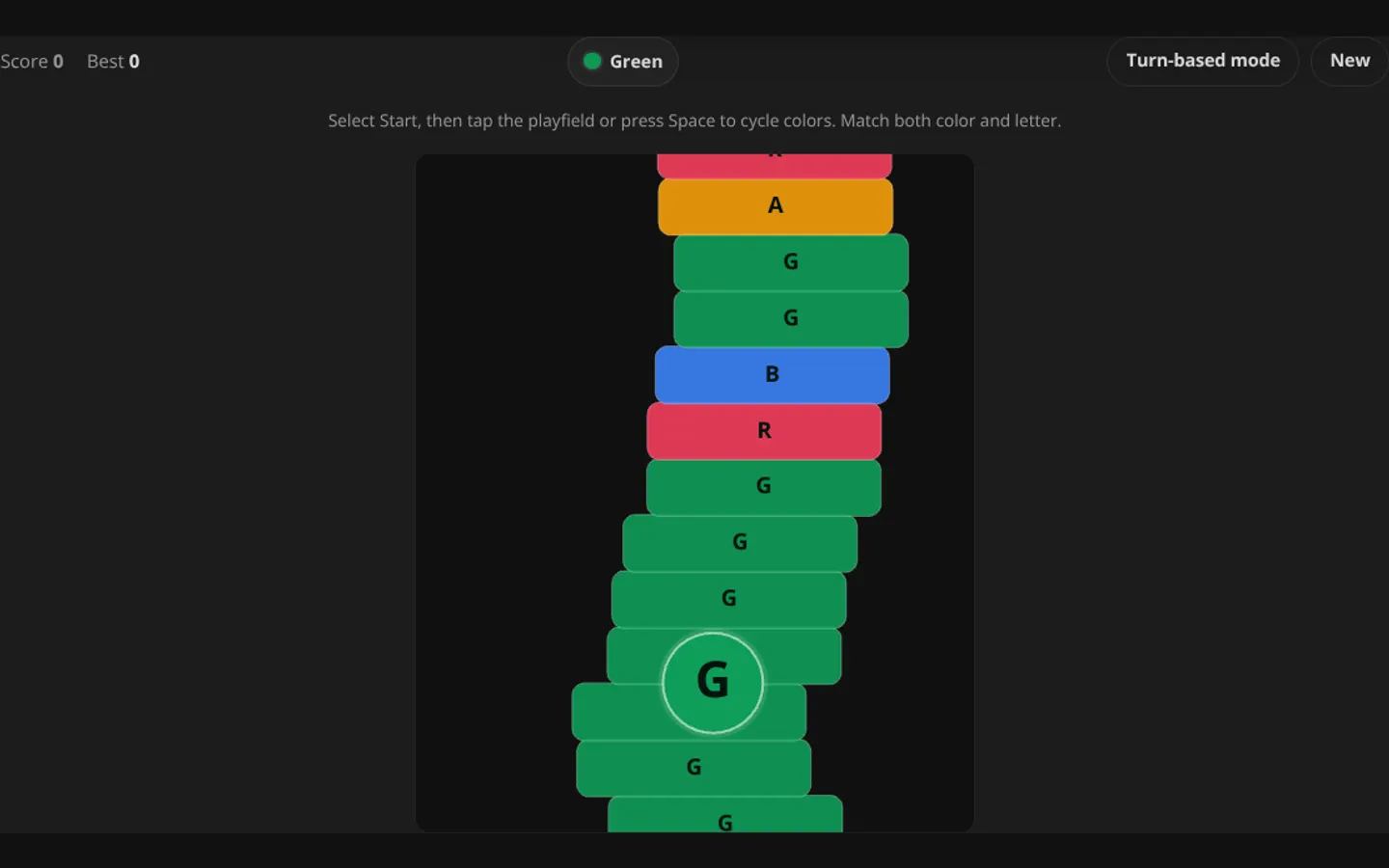
Color Flip is a calm tile puzzle. Pick a color at the start of each round, then tap adjacent tiles to step through the grid. Matching your color scores a point. There is no timer or reflex pressure, so you can take your time before each step; a nonmatching tile simply ends the current round.
Every color has a letter label: G for green, B for blue, A for amber, and R for rose. Labels and symbols appear on tiles and the player circle, so color is never the sole indicator.
How to play
At the start of each round, a compact color picker appears above the playfield. Choose one of the four colors. The picker then disappears — your color is fixed for the round (unless color rotation is enabled).
The playfield is a 5×5 grid. You occupy the center cell. Tap any adjacent tile (up, down, left, or right) to step onto it. If the tile’s color matches yours, you score a point and continue. If it doesn’t match, the round ends.
After each step, the grid shifts to keep you centered, and new tiles appear at the edges. Plan your path through matching-color tiles to build a score.
Controls at a glance
- Touch or pointer: tap an adjacent highlighted tile to step.
- Keyboard: arrow keys step in the corresponding direction. G, B, A, R pick a color at round start.
- Undo: reverses the last step (one step only).
- Rotation toggle: cycle between Never, Every 10 steps, Every 5 steps.
- Mode switch: switch to Turn-based mode at any time.
Color rotation
By default, your color never changes during a round (the calmest option). Toggle the rotation button to enable automatic color changes:
- Never (default): your color stays fixed. Plan a path through same-color tiles.
- Every 10 steps: your color rotates to the next in the cycle (Green → Blue → Amber → Rose → Green) after every 10 successful steps.
- Every 5 steps: same rotation, but faster. Requires planning ahead for color transitions.
Rotation adds variety without adding time pressure. The color change happens after a successful step, so you always know your new color before the next move.
Turn-based mode
Turn-based mode is unchanged: a separate untimed mode where you cycle through colors and step forward to match announced tiles. Use Cycle color and Step forward buttons. No timer, no grid, no spatial planning — just color matching.
Accessibility
- Color is never the sole indicator: every tile shows its letter (G, B, A, R) and the player circle shows the current color’s letter.
- Keyboard complete: arrow keys step, G/B/A/R pick colors, U undoes, Tab cycles toolbar buttons.
- Large tap targets: all adjacent tiles are ≥44px and clearly highlighted.
- prefers-reduced-motion: step animations are suppressed when enabled.
- forced-colors: adjacent tiles use Highlight token, player uses CanvasText.
- 320px reflow: picker fits above playfield without horizontal scroll.
What we don’t claim
We don’t claim that any color rotation level is easier or harder — preference depends on play style. We don’t claim any score is good or optimal. The best score is a personal record, not a performance evaluation.
Frequently asked questions about Color Flip
How do I play Color Flip?
Learn the tap-to-step visual mode, color rotation options, and how to use the accessible untimed turn-based mode.
Does Color Flip need an account?
No. The game opens without an account, and NoCharge does not provide cloud profiles or synchronized saves.
What controls does Color Flip support?
Visual mode: Pick one color at round start, then tap adjacent tiles to step. Matching color scores. Color rotation: Toggle between Never, Every 10 steps, or Every 5 steps for color changes during play. Turn-based mode: Use Cycle color and Step forward with no timing requirement.
Where does Color Flip keep saved results?
Any result or preference the game retains is stored in local storage in this browser. The exact value differs by game, does not synchronize, and can be removed with Clear game data.
What happens if I switch tabs while playing Color Flip?
The shared game shell pauses while the page is hidden and stops ambient audio. Returning removes the hidden-page pause, but a manual pause remains in place.
How do I restart Color Flip?
Use New game in the shared toolbar or settings panel. Restarting this game does not clear saved results from other games.
Is Color Flip timed?
The listed session is 1–4 min. Read the timing and scoring sections in this guide because modes within a game can behave differently.
How do sound and ambient controls work in Color Flip?
Master mute silences effects and ambient audio. Effects on/off changes game effects only, and the volume control also adjusts an active ambient texture.